Reconciling Bank Transactions
Import transactions, auto-match against your ledger, and resolve unmatched items.
Overview
Reconciliation ensures that your imported bank transactions match the events in your ledger. Axiomatic's reconciliation engine auto-matches transactions using fuzzy matching on amount, date, and counterparty — then surfaces unmatched items for manual review.
Step 1: Import Transactions
Before reconciling, you need imported transactions. These come from:
- Plaid sync — Automatic daily sync from linked bank accounts
- CSV upload — Manual import via the AI Assistant or the Import page
- API — Programmatic import via
POST /api/imported-transactions
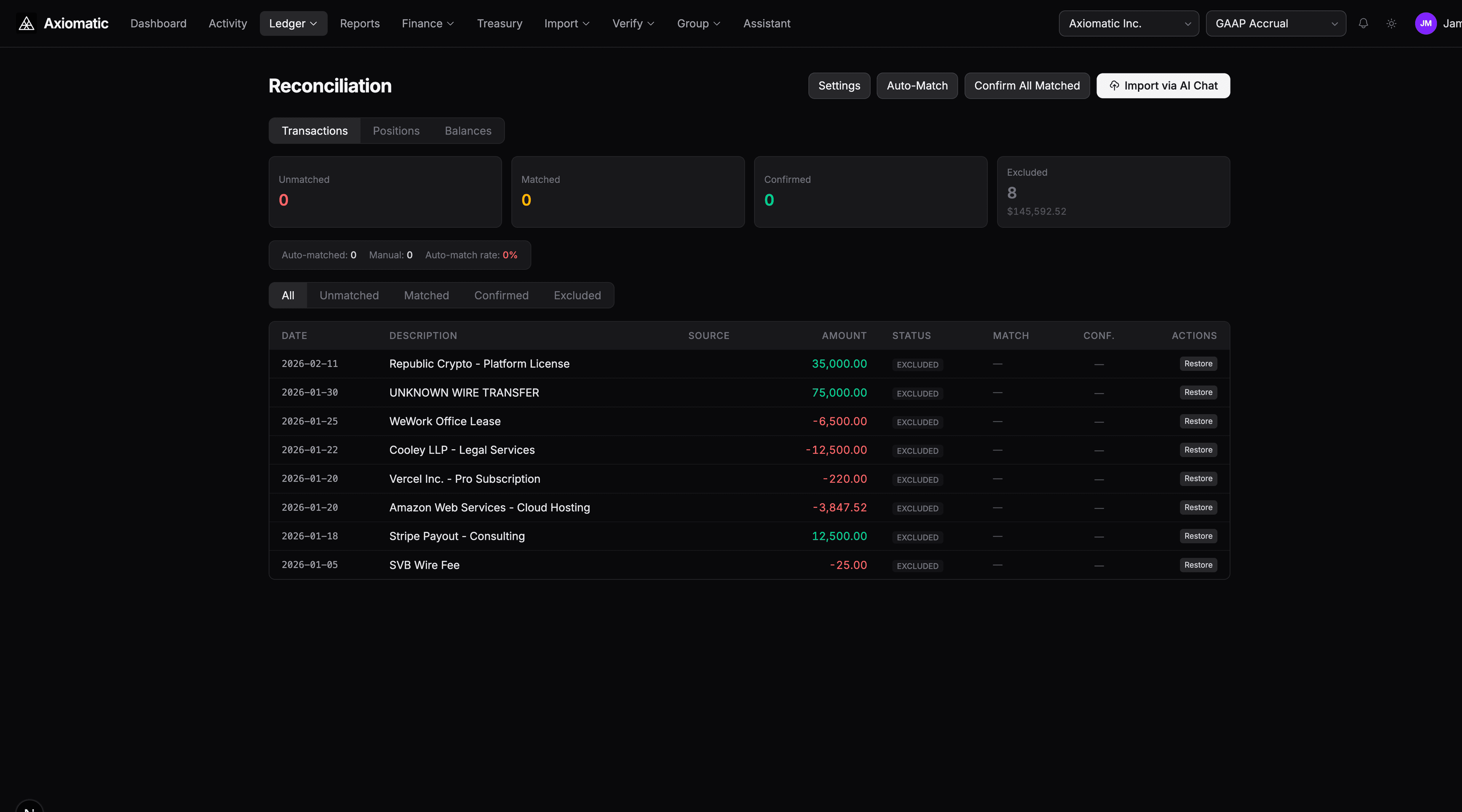
Navigate to the Reconciliation page (sidebar → Import → Reconciliation).
Step 2: Review Auto-Matched Transactions
The reconciliation engine automatically matches imported transactions to ledger events using:
- Amount matching — Exact or near-exact amount matches
- Date proximity — Transactions within a few days of each other
- Counterparty matching — Fuzzy Levenshtein matching on vendor/customer names
- Historical patterns — Learning from your previous matching decisions
Matched transactions appear in the Matched tab. Review them to ensure accuracy — false positives are rare but possible.
Step 3: Resolve Unmatched Transactions
Switch to the Unmatched tab to see transactions that couldn't be automatically matched. For each one, you have several options:
Classify as a New Event
Most unmatched transactions need to be classified — they represent new financial activity that hasn't been recorded as an event yet. You can:
-
Use the AI — Ask the assistant: "Please classify all unmatched transactions." The AI determines the correct event type for each and creates events with journal entries.
-
Classify manually — Click on a transaction and select the appropriate event type. The posting engine generates journal entries based on your rule packs.
Match to an Existing Event
If the transaction corresponds to an event that already exists but wasn't auto-matched, you can manually link them.
Exclude
Some transactions should be excluded from reconciliation entirely:
- Internal transfers — Transfers between your own accounts (e.g., checking → savings)
- Duplicate entries — Transactions that appear in multiple feeds
- Non-financial items — Bank fees or charges that are tracked separately
Click Exclude to remove a transaction from the reconciliation queue. Excluded transactions won't appear in financial reports.
Step 4: Verify Reconciliation Summary
Once all transactions are either matched, classified, or excluded, check the reconciliation summary:
- Total imported — All transactions brought in from the source
- Matched — Successfully reconciled against ledger events
- Excluded — Removed from reconciliation
- Unmatched — Still needs attention
Your goal is zero unmatched transactions before closing the period.
Tips
- Run reconciliation before period close to catch any missing transactions
- The AI's classification accuracy improves over time as it learns your patterns
- Use the source filter to reconcile one bank account at a time
- Excluded transactions are soft-excluded — you can restore them later if needed
Next Steps
- Closing an Accounting Period — Close the period after reconciliation is complete
- Using the AI Assistant — Bulk-classify unmatched transactions with the AI